
Word — FAQ
Frequently asked questions
-
Generally I build one template per document type that supports the different languages. In Personal Details you set your preferred language, which is selected by default when creating a new document. In some cases you make a different choice, but the default is usually enough. When the document is created, fixed text is translated: for example the footer is set in the correct language, think 'P.O. Box', 'The Netherlands', and a country code in phone numbers. The spelling and grammar check language is adjusted automatically.
-
Sometimes it's decided to build all the developed functionality in one language, often English — a simple and low-cost solution. But a multilingual user interface is also possible. That could, for example, follow the language of the Word user interface, follow the language of Windows, or be set by the user themselves. Unlike KeySlides, which is a standard add-in, Word solutions are custom-built — I can fully match what your organization needs.
-
The first question I then ask: is everyone allowed to use all entities and locations in correspondence? If not, we need to look at how the templates are offered. But within the templates I can certainly support multiple entities, locations, and languages. In Personal Details I can have the default entity and/or location set, so you don't have to select it for every document, while still allowing a different choice when needed. Do you think it could work better within your environment, for example based on security group membership? I build custom solutions, so I'm happy to have that conversation.
-
In the window that opens when creating a new document, I can include a field for a boilerplate file, linked to a central folder of boilerplate files. I can set the default subfolder for browsing — for example based on document type and/or language. The field also supports drag & drop. Is there a need for smaller building blocks, for example choices within a contract? Then a ribbon button can be added to insert a building block at the cursor position. A window then opens showing the tree structure of building-block files and a preview of the selected file before you insert it.
-
All fields in the window shown when creating a document are linked to fields in the template. For example, the title on the cover of a report is linked to the title in the footer of the body text. Change it in one place, and the other updates automatically. Do you have data that isn't asked for in the window, but that the user still needs to be able to insert manually in multiple places? Let me know, and I'll make that possible too.
-
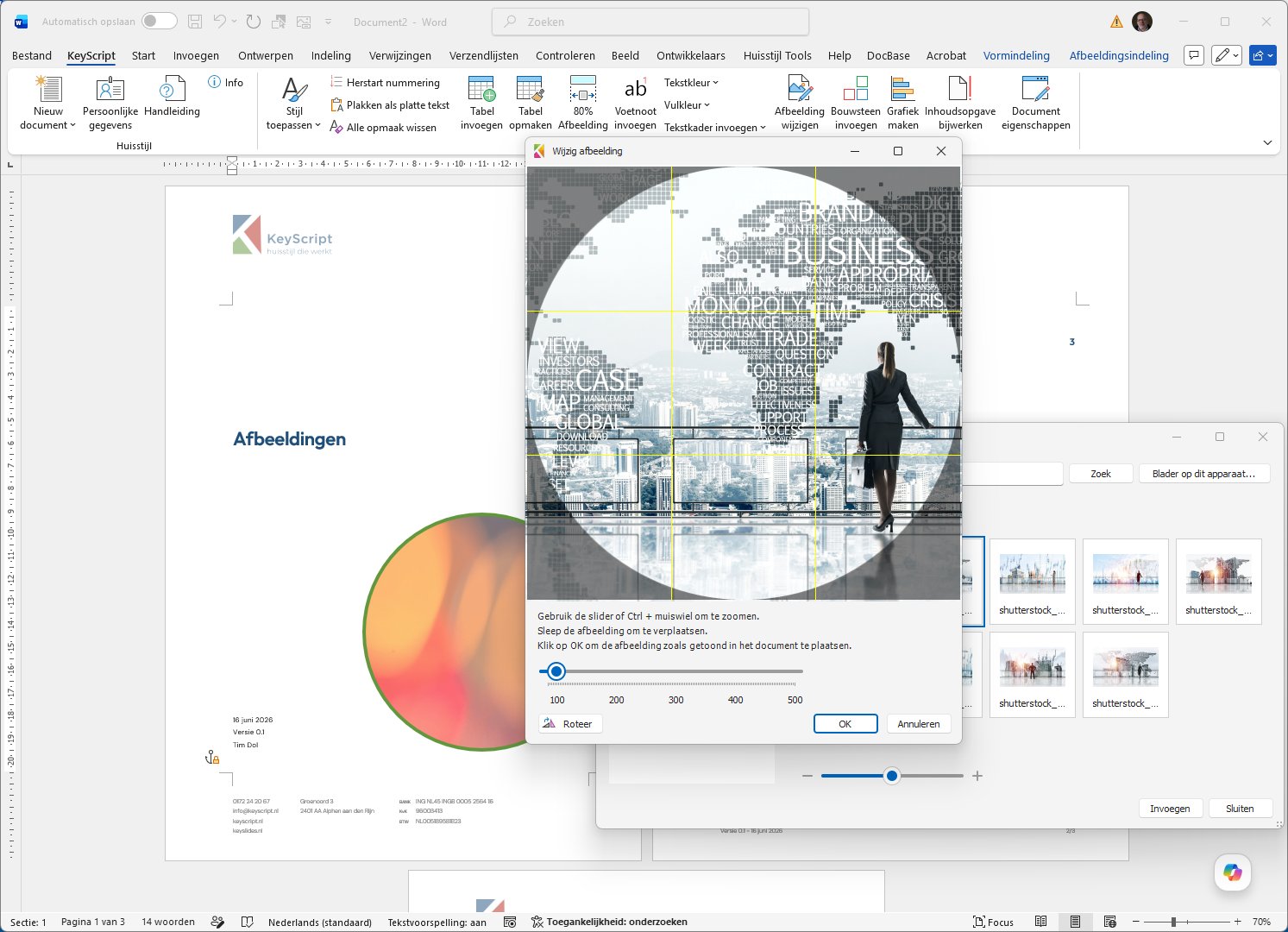
Images can be 'anchored' in many ways. A wrong choice can lead to unpredictable or unwanted behavior. I can help analyze your template. Within the templates I build myself, I make sure images are positioned in the most logical way. Images that need an exact height and width aren't actually well supported in Word. In my add-in I solve that by determining the size of the existing photo — select a different photo with different proportions, and a crop tool opens automatically.
-
The template can be extended with up to fifty custom colors. See the template check for more improvements I can make to templates.
-
The template can be extended with one or more table styles, giving you control over background colors, text colors, borders, and border weight. See the template check for more information.